
The Co-op Live app

The Co-op Live app has had an update
Your event starts before the lights go down. We’ve launched a brand-new Co-op Live app, designed to make every visit even easier.
To get the best experience, make sure you download or update to the latest version of the app before your next event.
Everyone will need to create a new Co-op Live account, and then link their Ticketmaster account to access their tickets.
Manage and transfer tickets, explore the venue, check your seat view and travel information, and discover food, drink and merchandise. You can also book lockers, pre-order official merch, access exclusive experiences and be first to hear about new shows, presales and special offers.
For more information on your tickets, you can view our ticketing help section.
Getting started with the Co-op Live App
Setting up the app only takes a few minutes.
Step 1: Create your Co-op Live account
- Download the Co-op Live app from the IOS App Store or Google Play Store.
- Create your own Co-op Live account using your email address.
- Turn on notifications to receive important event updates, exclusive experiences, new features and special offers.
Your Co-op Live account gives you access to event information, venue features, ticket management and exclusive app experiences.
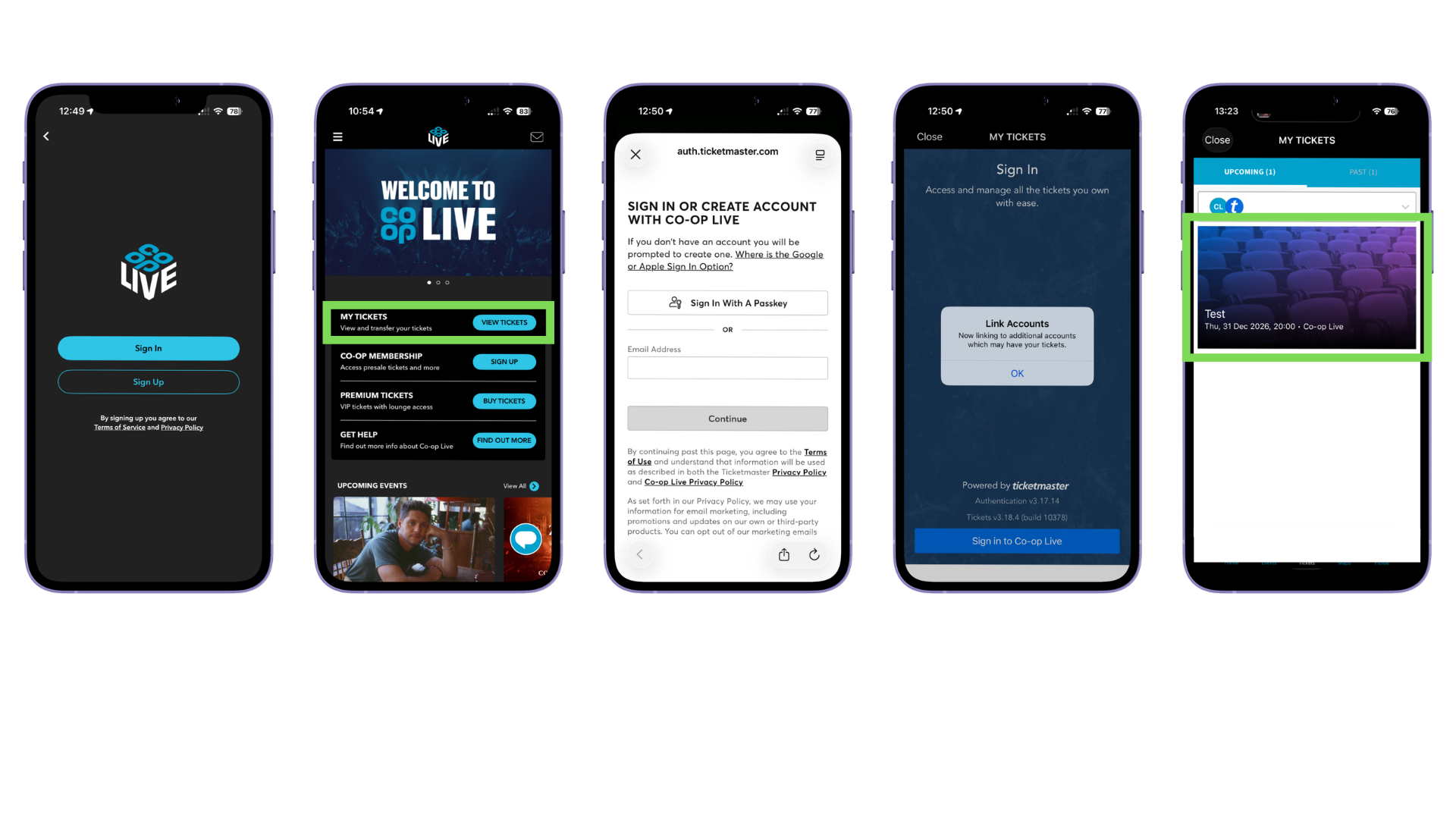
Step 2: Link your ticketing account
After creating your Co-op Live account, you'll need to link the ticketing account used to purchase your tickets, on your first visit you will be prompted to link your Ticketmaster account.
- Open the app and select My Tickets from the homepage or menu.
- Sign in using the same email address that you have purchased your tickets with. If you don’t already have a Ticketmaster account, please use the same email address and sign up.
- If you have purchased through Seat Unique, See Tickets, Gigs and Tours or Gigantic, please create an account using the same email address and your tickets will then be activated in the Co-op Live app with a barcode no later than 5 days before the day of the event.
Once linked, you'll stay connected unless you choose to disconnect your account. You can manage your connected accounts at any time by heading to Settings > Manage Third-Party Accounts. Important: If you do not link your ticketing account, your tickets will not appear in the Co-op Live app.
Step 3: View your tickets
- Once your ticketing account is linked, Ticketmaster tickets will automatically appear within the app.
- Don't forget to scroll down to pre-oder exclusive merchandise.
- Your barcode will appear not later than 5 days before the event, you can then save to wallet.
How do I download the Co-op Live App
You can download the Co-op Live app on IOS App Store and on Google Play Store. Alternatively, please click here to direct you instantly to the correct app store for your device. Please note, the Co-op Membership app is a separate app and will not get you into the venue.
Getting started with the Co-op Live App
Setting up the app only takes a few minutes.
Step 1: Create your Co-op Live account
- Download the Co-op Live app from the IOS App Store or Google Play Store.
- Create your own Co-op Live account using your email address.
- Turn on notifications to receive important event updates, exclusive experiences, new features and special offers.
Your Co-op Live account gives you access to event information, venue features, ticket management and exclusive app experiences.
Step 2: Link your ticketing account
After creating your Co-op Live account, you'll need to link the ticketing account used to purchase your tickets, on your first visit you will be prompted to link your Ticketmaster account.
- Open the app and select My Tickets from the homepage or menu.
- Sign in using the same email address that you have purchased your tickets with. If you don’t already have a Ticketmaster account, please use the same email address and sign up.
- If you have purchased with one of the below third parties, please create an account using the same email address and your tickets will then be activated in the Co-op Live app with a barcode no later than 5 days before the day of the event.
Supported ticketing suppliers include:
• Ticketmaster
• Seat Unique
• See Tickets
• Gigs and Tours
• Gigantic
Once linked, you'll stay connected unless you choose to disconnect your account. You can manage your connected accounts at any time by heading to Settings > Manage Third-Party Accounts.
Important: If you do not link your ticketing account, your tickets will not appear in the Co-op Live app.
Step 3: View your tickets
- Once your ticketing account is linked, Ticketmaster tickets will automatically appear within the app.
- Don't forget to scroll down to pre-oder exclusive merchandise.
- Your barcode will appear not later than 5 days before the event, you can then save to wallet.
What is a Co-op Live account?
A Co-op Live account is your personal account for accessing app features and managing your event experience.
Your account allows you to:
• Access tickets from connected ticketing providers
• View your seat before you arrive
• Receive important event updates
• Save preferences
• Access exclusive app features
• Manage notifications
To create an account:
- Open the Co-op Live app.
- Select "Sign Up" on the main screen.
- Enter your email address, create a password, and provide any other required information.
- Tap "Complete" to complete the process.
How can I pre-order Merchandise?
Exclusively through the app, you have access to Click & Collect and Order to home merchandise.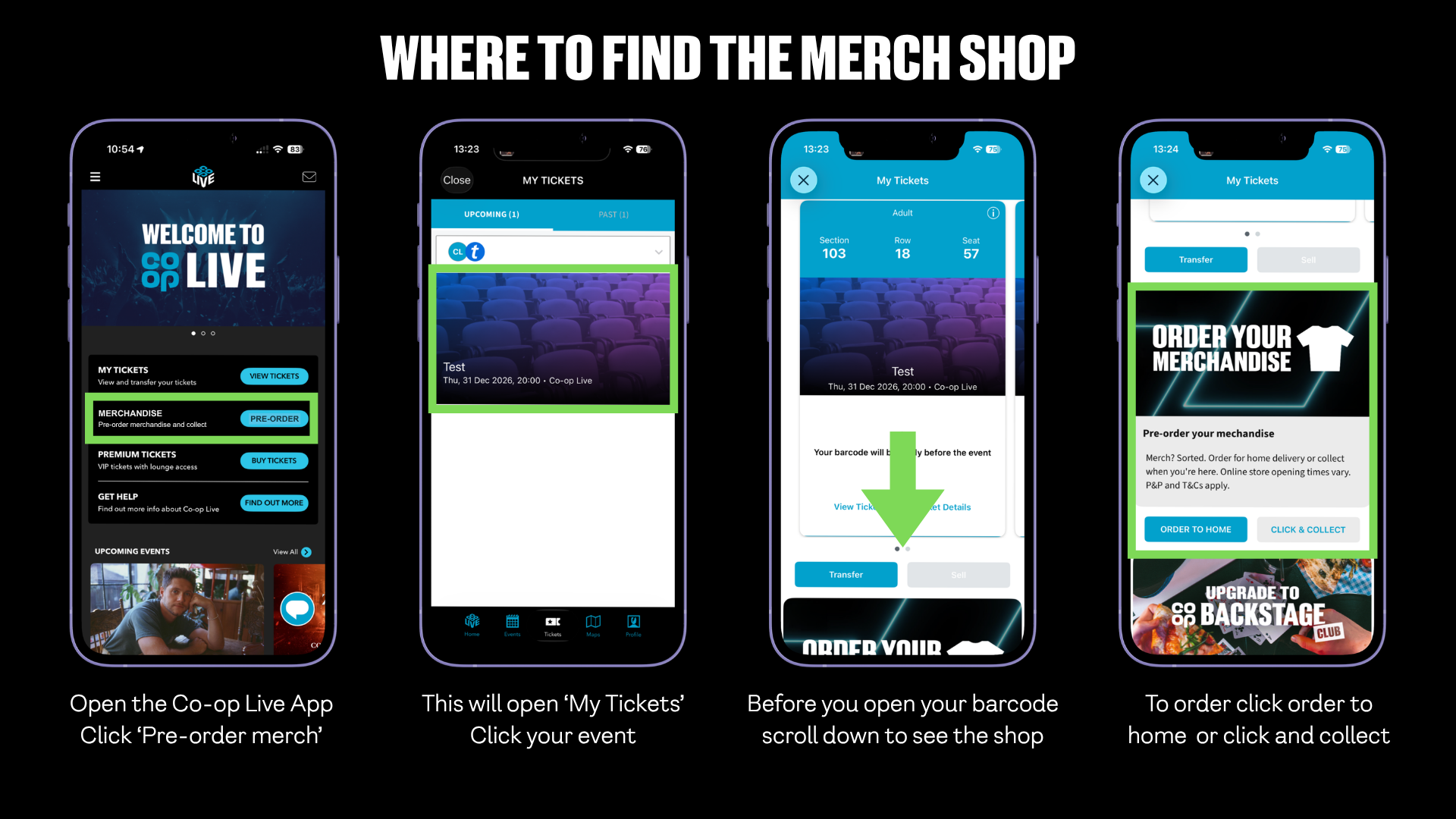
You can find all other information on the Merchandise page.
HOW DO I TRANSFER MY TICKETS?
If you have booked through Ticketmaster, tickets can be directly transferred to friends or family through the Co-op Live app up to 30 days before the event, and often at your point of purchase. Please note that for some events, ticket transfer may be disabled.
1. Open the Co-op Live app and link your Ticketmaster account.
2. Tap My Tickets and select the event.
3. Tap Transfer.
4. Select the tickets you'd like to transfer and tap Transfer To.
5. Enter your recipient's information, including their email address — you could even add a note too.
6. Tap Transfer Ticket.
For guidance on how to transfer tickets through Ticketmaster, visit their help page.
I FORGOT MY PASSWORD. HOW CAN I RESET IT?
To reset your Co-op Live password
1. Click "Forgot Password" on the login screen.
2. Enter your email address.
3. Check your email for a password reset link and follow the instructions to create a new password. It may take up to 5 minutes to send.
To reset your Ticketmaster password:
1. Click 'My Tickets'Click "Forgot Password" on the login screen.
2. Enter your email address.
3. Check your email for a password reset link and follow the instructions to create a new password.
I CAN'T LOG IN. WHAT DO I DO?
If you are struggling to log into the app please check the following:
- Ensure you have downloaded the latest version of the venue app.
- Check that you are logging in using the same email address used to place the order.
- If a typo was made in the email address used when making the booking, this can be resolved by getting in touch with your point of purchase.
If you are still finding it difficult, please visit Fan Services on your arrival to the venue who will look to resolve ticket issues. They are located outside, next to the canal between Entrances E and F.
WHEN WILL I RECEIVE MY TICKETS?
Ticketholders will receive a confirmation e-mail shortly after purchase from their point of purchase. Tickets from Ticketmaster, Seat Unique, Gigs & Tours, Gigantic and See Tickets will then be activated in the Co-op Live app with a barcode no later than 5 days before the day of the event, so please do not worry if you don’t see the ticket appear in the app straight away. Please ensure that you have the app downloaded, are logged into your account and can see your tickets prior to arriving at the venue.
If you cannot see your tickets and it is less than 5 days before the event, please contact your point of purchase, and follow their instructions on how to access tickets.
MY BARCODE DOES NOT DISPLAY IN MY TICKET IN THE CO-OP LIVE APP
If you can see your booking, but the barcode is not yet displayed, it's likely that the tickets have not been released yet. This will be intentional. If it’s less than 5 days before the event date, please contact your point of purchase.
If you can't see your booking, please defer to your point of purchase.
CAN I STILL USE THE APP IF I DIDN'T BOOK THROUGH TICKETMASTER?
Yes, the app is the go-to place to find out all about the venue and the event before you arrive. Fans who have purchased from See Tickets, Gigs and Tours, Gigantic or Seat Unique can also locate their tickets in the app, and should follow the instructions on accessing their tickets. If you have book through AXS please refer to your emails for ticket delivery instructions. We encourage all fans to download the Co-op Live app to enhance your in-venue experience.
How do I unlink or change my Ticketmaster account?
If you've logged into the wrong account, or simply want to unlick.
1. Head to settings - from menu click gear icon
2. Select 'Manage Third Party Accounts'
3. Unlink Ticketmaster
4. Go back to settings and log out.
5. Close and restart the app
6. Log in and connect the correct Ticketmaster account.
Then you will be promted to log in again to view tickets.
I can't see my tickets in the app
Please check the following:
✓ You have created a Co-op Live account
✓ You have linked your Ticketmaster account
✓ The correct ticketing account has been linked in Third-Party Accounts
✓ You are using the same email address associated with your ticket purchase
✓ You have downloaded the latest version of the app
✓ It is at least 5 days before the event and your tickets have been released by the ticketing provider
For many events, tickets will appear no later than approximately 5 days before the event date.
If you've completed the above steps and still cannot see your tickets, please contact your point of purchase.
If you have purchased from Ticketmaster, See Tickets, Gigs and Tours, Gigantic or Seat Unique, your tickets will likely to appear in the app no later than 5 days before the event date, so don’t worry if you can’t see them just yet. If you still don’t have access to your ticket 3 days before the event, please contact your point of purchase.
If you haven't booked through Ticketmaster, See Tickets, Gigs and Tours, Gigantic or Seat Unique, please refer to your point of purchase for your tickets. This can include AXS for example.
If tickets are still not appearing on the day of the event, don’t worry, head to Fan Services to get support.
CAN I USE A SCREENSHOT OF MY TICKET TO ENTER THE VENUE?
No. Your mobile ticket includes leading technology with fraud protection, so you won't be able to use screenshots or printouts. We use SafeTix™, a new and unique barcode that automatically refreshes every few seconds so it cannot be stolen or copied, keeping your tickets safe and secure.
WHY DO I NEED THE APP?
If you have booked tickets through Ticketmaster, See Tickets, Official Hospitality via Seat Unique or a Premium Experience from a member of the Co-op Live team, your ticket will be available through the Co-op Live app. The app will also support your in-venue experience, including detailed venue maps, promotions, information and updates.
We use innovate SafeTix™ technology to ensure the ticket remains secure. The app will include a dynamic barcode to eliminate fraud or theft. Please note that screenshots of the barcode will not be accepted. Following its first open, the barcode will open without access to an internet connection.
WHAT ARE SAFETIX?
With Ticketmaster SafeTix™, your unique barcode gets you into the venue quickly, automatically refreshing every few seconds to eliminate fraud or theft.
PROBLEMS LOGGING IN - I CAN'T SEE THE LOG IN PAGE ON THE APP
If you can't see the fields to log in on the app, then it may be because you have increased the size of your font on your mobile phone. Please follow the below steps and see if it resolves the issue.
Android
Step 1. Launch the Settings app, and then select Display.
Step 2. Select Font size and style.
Step 3. Change the Font size by dragging the slider left or right.
You can find further instructions on Samsung's Help Page.
Iphone
Go to Settings > Display & Brightness, then select Text Size.
Drag the slider to select the font size you want.
You can find further instructions on Apple's Help Page.
If you are still having an issue, please send feedback via the app. You can also view your tickets on the Ticketmaster app or visit the Fan Services office on event day, the office opens from one hour before general admission doors.
WILL I SEE MY TICKET IN THE CO-OP MEMBERSHIP APP?
No. The Co-op Membership App and Co-op Live App are separate products. The Co-op Membership app is where you will find all your benefits to being a Co-op Member, including access to purchase presale tickets at Co-op Live. You will need to download the Co-op Live venue app to receive your tickets and enter the venue.
WHAT IF I DON'T HAVE A SMARTPHONE?
If you don't have a smartphone, another way to gain entry to the venue is through the Ticket Office team located on Level 1, Canalside.
To gain entry, you must provide the physical credit/debit card used for the purchase alongside photo ID (such as a driving licence or passport). The name on your photo ID must match the name on the credit/debit card used for the ticket purchase; otherwise you will be refused entry. If you have a new card since the time of booking, you’ll need to contact your point of purchase to update the booking details.
HOW DO I JOIN THE MAILING LIST?
Simply add your details
1. Head to cooplive.com/mailing-list
2. Enter your information
3. Click Submit
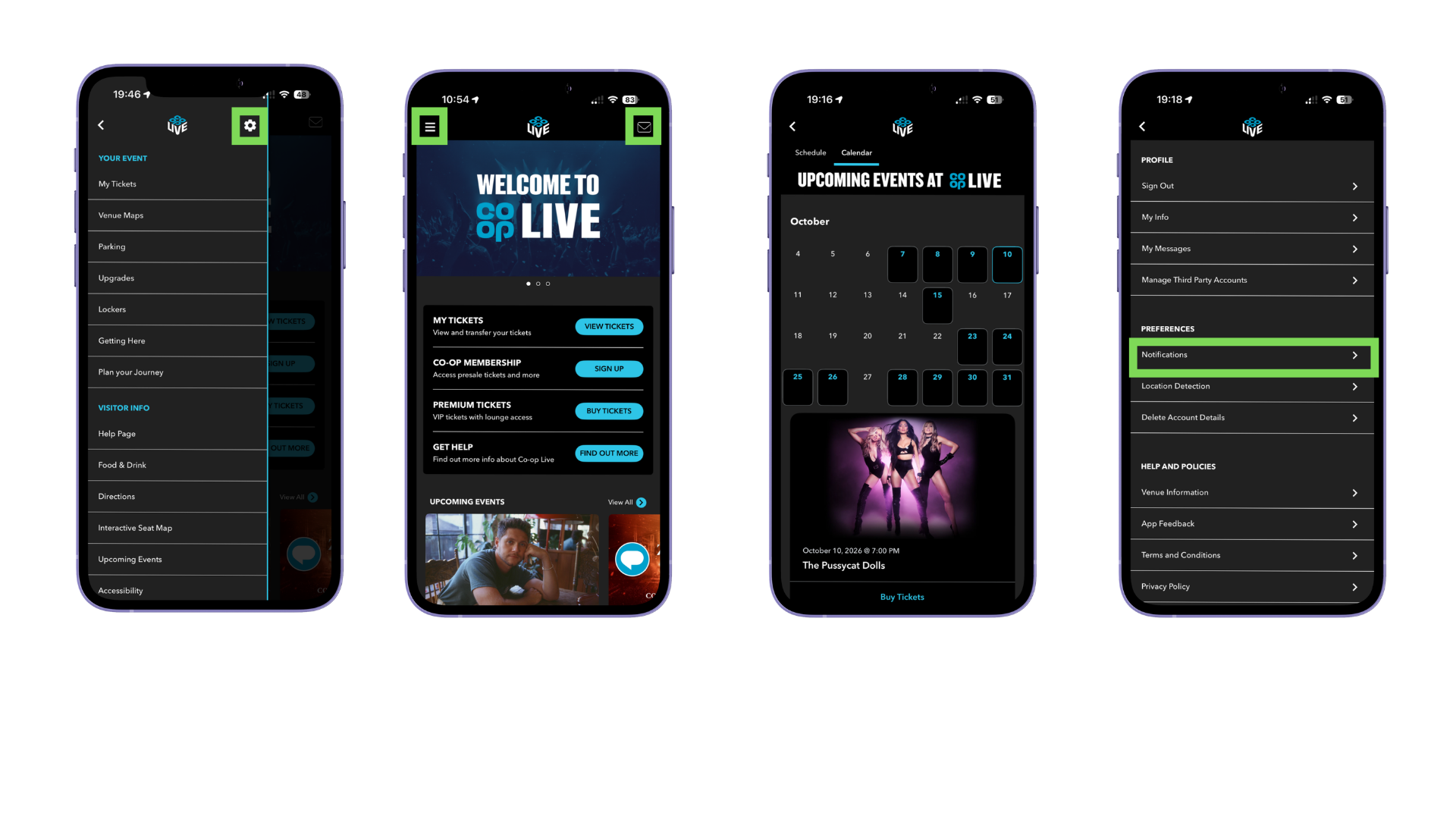
HOW DO I ENABLE NOTIFICATIONS?
To enable notifications:
- Open the app
- Click menu in the top left
- Click the gear icon to go to settings
- Click notifications and turn on.
We strongly encourage all customers to enable notifications as notifications provide:
- Event updates
- Venue announcements
- Ticket reminders
- Travel information
- Merchandise reminders
- New app feature updates
- Exclusive offers and experiences